
How To Add A WordPress User Correctly
Adding new users to your WordPress site may sound simple, but if you don’t do it carefully, you can expose your website to unnecessary risks. The principle of least privilege, giving users only the access they need and nothing more, is the best way to protect your site from mistakes, misuse, or security breaches.
In this article, we’ll walk through how to add a WordPress user correctly, what each role means, and how to apply least privilege best practices.
How to Add a User in WordPress
- Log in to your WordPress Admin Dashboard.
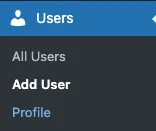
- Go to Users > Add New.
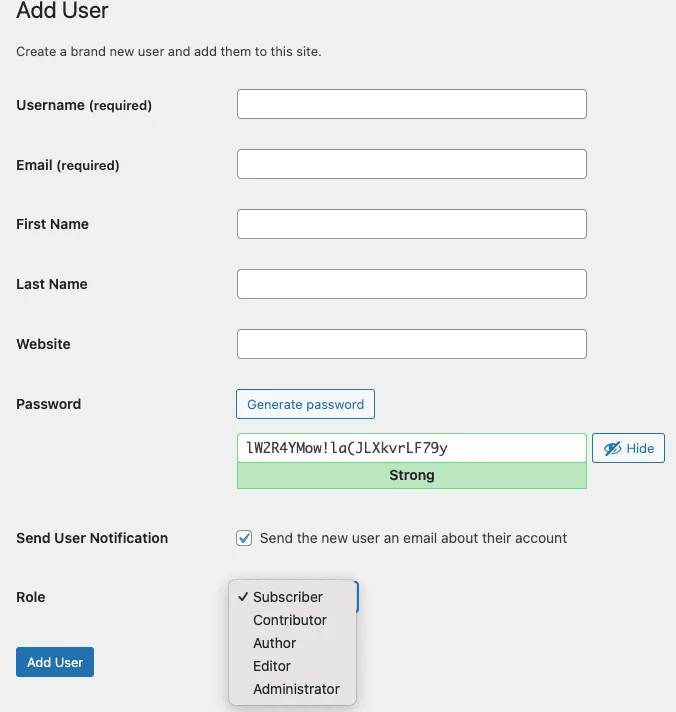
- Fill in the required information:
- Username (cannot be changed later).
- Email address (used for notifications and password resets).
- First and Last Name (optional but helpful for organization).
- Website (optional).
- Password (auto-generated or custom: ensure it’s strong).
- Choose a Role (this is where least privilege comes into play).
- Check the box if you want to send the new user an email about their account.
- Click Add New User.
That’s it! But the critical part is selecting the proper role.
WordPress User Roles Explained
WordPress comes with six default roles. Each one has different capabilities:
1. Administrator
- Full control over the site. Can add/remove plugins, themes, and users.
- Least Privilege Note: Only site owners or highly trusted managers should have this role.
2. Editor
- Can publish, edit, and delete any posts or pages (including those by other users).
- Can moderate comments and manage categories and tags.
- Use Case: Content managers who oversee multiple authors.
3. Author
- Can publish, edit, and delete their own posts only.
- Can upload media files.
- Use Case: Bloggers or writers who need publishing rights but shouldn’t touch other users’ content.
4. Contributor
- Can write and edit their own posts, but cannot publish them.
- Posts must be reviewed and published by an Editor or Administrator.
- Use Case: Guest writers or new team members who need oversight.
5. Subscriber
- Can log in, manage their profile, and leave comments.
- No publishing or editing rights.
- Use Case: Membership sites or readers who need an account to access content.
6. Super Admin (Multisite only)
- Complete control across a network of WordPress sites.
- Can add/remove sites, manage themes, users, and settings network-wide.
- Use Case: Only for WordPress Multisite environments.
Best Practice: The Principle of Least Privilege
The principle of least privilege (PoLP) means giving each user the minimum role necessary to complete their tasks, no more. This reduces risks of:
- Accidental damage (example: a writer deleting another author’s post).
- Security issues (hackers exploiting high-level accounts).
- Operational confusion (too many people with admin powers).
Examples of Applying Least Privilege:
- A marketing assistant who only uploads blog drafts → Contributor.
- A blogger who needs to publish their own articles → Author.
- A content manager who reviews and edits other posts → Editor.
- A trusted business partner who manages the entire site → Administrator.
Why User Roles Matter
- Security: Every extra privilege is an attack surface.
- Accountability: Clear roles make it easy to see who did what.
- Efficiency: Users don’t get overwhelmed with tools they don’t need.
- Professionalism: Structured permissions reflect a well-managed site.
Final Thoughts
Adding users to WordPress is more than just filling out a form; it’s about assigning the right role to the right person. By applying the principle of least privilege, you’ll keep your site secure, organized, and efficient.
- Use Subscriber for general access.
- Use Contributor/Author for writers.
- Use Editor for content managers.
- Reserve Administrator access for only the most trusted users.
Your WordPress site is only as secure as the accounts that access it, so take a few extra minutes to set roles carefully and protect your site for the long run.
That is today’s Ducky Journal Entry. We hope it’s helpful.
Comments are closed.