

How To Disable Comments In WordPress
WordPress comes with a built-in commenting system that allows visitors to leave feedback on your posts. While comments can be a great way to build community, they aren’t always the best fit for every website. In fact, for many business or portfolio sites, leaving comments enabled can create more problems than value.
In this guide, we’ll cover how to disable comments in WordPress, why you might want to, the risks of leaving them on, and the pros and cons of disabling them before launch.
How to Disable Comments in WordPress
There are several ways to turn off comments depending on your needs:
1. Disable Comments on All New Posts
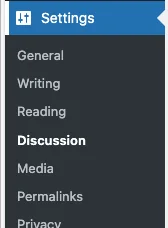
In your WordPress dashboard, go to Settings > Discussion.
Uncheck the box that says “Allow people to submit comments on new posts.”
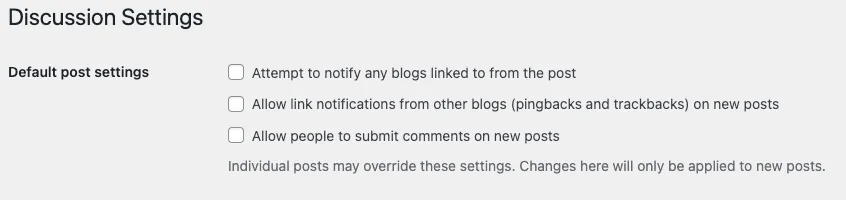
Save changes.
This will stop comments on all future posts and pages.
2. Disable Comments on Existing Content
Go to Posts > All Posts (or Pages > All Pages).
Select the posts you want to update.
Under the Bulk Actions menu, choose Edit, then click Apply.
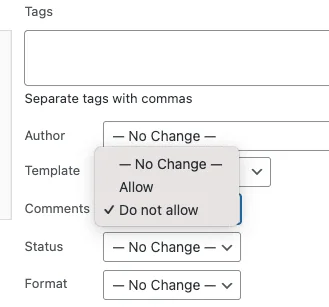
Set Comments > Do not allow, then update.
3. Disable Comments on Individual Posts or Pages
When editing a page or post, look for the Discussion panel (you may need to enable it from Screen Options). There, you can uncheck Allow Comments.
4. Use a Plugin
For more advanced control, plugins like Disable Comments can turn off comments site-wide with one click and remove comment-related features from your dashboard.
Why You Should Disable Comments
1. Reduce Spam
Unmoderated comment sections often get flooded with spam, harmful links, or irrelevant content. This can hurt your SEO and damage your site’s credibility.
2. Keep Your Site Professional
If your site is focused on business, portfolios, or marketing, a comment section may not serve any purpose and can distract from your message.
3. Lower Maintenance Effort
Moderating comments takes time. Disabling them frees you from the constant need to review, approve, or delete submissions.
4. Improve Security
Spam comments and bots can sometimes be used as an entry point for malicious activity. Turning them off reduces that risk.
What Happens If You Don’t Disable Comments
Spam Will Accumulate: Without plugins or strong filters, you may wake up to hundreds of spam comments.
SEO Risks: Search engines crawl all content, including spammy links in comments. This could harm your rankings.
Unprofessional Look: An unattended comment section with spam or unanswered questions makes a site look abandoned.
Moderation Burden: If your site grows quickly, the volume of comments could overwhelm your ability to manage them.
Why You Should Turn Off Comments Before Going Live
If you plan to disable comments, it’s best to do it before launch:
Ensures no early spam gets indexed by search engines.
Avoids the awkward situation of removing existing comments later.
Helps set visitor expectations from day one.
Think of it like setting the rules before the doors open, easier than trying to backtrack once people are already participating.
Why You May Not Want to Disable Comments
That said, comments aren’t always bad. Here are reasons to leave them enabled:
Community Engagement: Blogs and news sites benefit from conversations, feedback, and debates.
User-Generated Content: Valuable comments can add depth and unique insights to your posts.
SEO Benefits: Well-moderated discussions can increase keyword relevance and keep pages updated.
If you have the resources to manage and moderate, a comment section can add significant value.
Final Thoughts
Deciding whether to disable comments in WordPress comes down to your website’s purpose. If you’re running a business site, portfolio, or landing page, turning comments off before launch keeps things clean and professional. On the other hand, if you’re building a blog or community-driven site, comments can foster valuable discussions.
The key is to decide before your site goes live, so you set expectations correctly and avoid future SEO or security headaches.
That is today’s Ducky Journal Entry. We hope it’s helpful!
Comments are closed.