

Understanding Media Settings In WordPress
When you upload an image to WordPress, the platform doesn’t just keep the original file; it automatically creates additional versions of that image in different sizes. These settings, controlled in the Media Settings area of your WordPress dashboard, play a significant role in how your site looks, loads, and performs.
In this guide, we’ll explain what the Media settings mean, what each size option does, why optimizing images is so important, and how Dorky Duck hosting makes this process worry-free by handling optimization for you.
What Are Media Settings in WordPress?
You can find WordPress Media settings by going to:
Dashboard > Settings > Media.
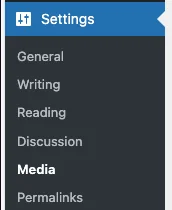
Here you’ll see three key options for image sizes:
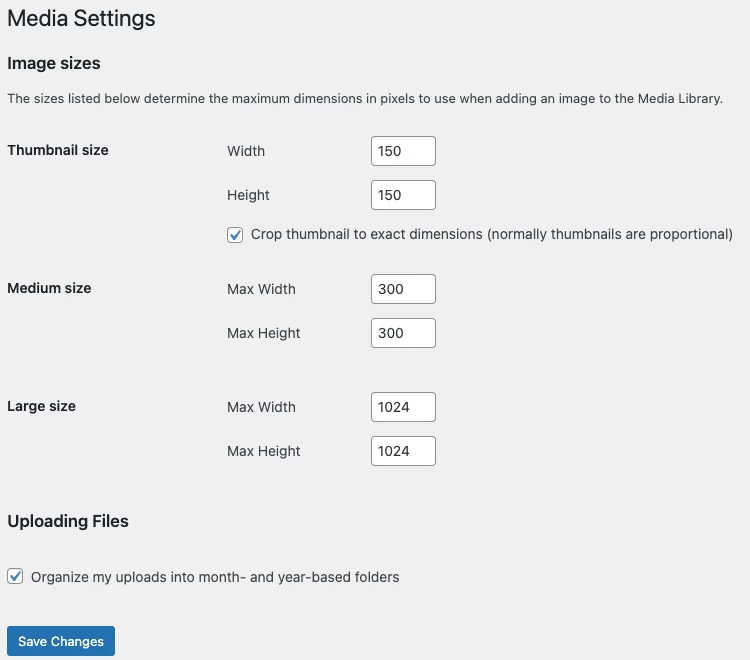
- Thumbnail Size – Small square images, often used for featured images, galleries, and previews. WordPress can crop these to exact dimensions if you enable the “Crop thumbnail to exact dimensions” option.
- Medium Size – A resized version of your image, useful for blog content where you want images that aren’t too large but still sharp.
- Large Size – A bigger resized version of your image, typically used for page banners or wider content areas.
WordPress automatically generates these sizes when you upload an image, eliminating the need to manually resize files for different uses across your site.
Why Image Sizes Matter
1. Speed and Performance
Images are often the heaviest files on a website. If every image is full-resolution (straight from a DSLR or stock photo site), your pages will load slowly. By using the right size, WordPress can display smaller, optimized versions instead of loading unnecessarily large files.
2. Design Consistency
Preset sizes ensure your blog posts, thumbnails, and galleries look uniform. Without this, your site may appear messy with mismatched image dimensions.
3. SEO Impact
Google factors page speed and mobile friendliness into rankings. Optimized images help your site load faster, improving both user experience and SEO.
4. Bandwidth and Storage Savings
Serving resized images prevents your hosting from being overloaded by giant files, saving storage space and keeping your hosting costs in check.
Why Image Optimization Is So Important
Even with WordPress generating multiple image sizes, optimization goes a step further.
Image optimization involves:
- Compression (reducing file size without noticeable quality loss).
- Resizing (ensuring images aren’t larger than they need to be).
- Format choices (using modern formats like WebP for faster loading).
Without optimization:
- Your site may be sluggish.
- Mobile users may bounce due to slow load times.
- SEO rankings could suffer.
- You’ll use more server resources than necessary.

How Dorky Duck Hosting Helps
At Dorky Duck, we know that site owners often overlook image optimization. That’s why our hosting automatically:
- Optimizes images on upload so you never have to worry about bloated file sizes.
- Delivers images in modern formats for the fastest load times possible.
- Keeps your media library lean, saving storage space and improving performance.
This means you can focus on your content and design, while we handle the technical heavy lifting in the background.
Best Practices for Managing WordPress Media
- Set reasonable default sizes in Settings > Media (don’t go bigger than your theme needs).
- Use alt text for accessibility and SEO.
- Remove unused images to keep your media library clean.
- Let optimization tools, or better, your hosting, handle compression automatically.
Final Thoughts
Media settings in WordPress may seem small, but they have a significant impact on site speed, SEO, and user experience. By understanding what each image size does and ensuring your images are correctly optimized, you’ll keep your site looking sharp and loading fast.
And if you host with Dorky Duck, you don’t even have to think about it; our automatic image optimization ensures every upload is fast, light, and search-engine friendly from the start.
That is today’s Ducky Journal Entry. We hope it’s helpful.
Comments are closed.