
What Is A Privacy Page In WordPress
In today’s digital world, protecting user data isn’t optional; it’s a requirement if your website collects any personal information, whether through contact forms, analytics, or e-commerce. You need a Privacy Policy page.
WordPress makes this process easier by giving you a built-in way to create and assign a privacy page. In this article, we’ll explain what a privacy page is, why you need one, how to set it up in WordPress, and how to make sure WordPress knows which page to use.
What Is a Privacy Page?
A privacy page (or Privacy Policy) is a dedicated page on your website that explains:
- The data you collect Includes Names, email addresses, cookies, payment details, etc.
- How you collect it: Contact forms, subscriptions, analytics, e-commerce checkouts.
- How you use it: For communication, analytics, or marketing.
- Who you share it with: Third-party services like payment processors, hosting providers, or ad networks.
- Users can control their data Through Opt-out options, unsubscribe links, or deletion requests.
Essentially, it’s a legal and ethical statement that builds trust with your visitors and helps you comply with laws like:
Why a Privacy Page Is Important
- Legal Compliance – Many countries legally require you to disclose how user data is collected and processed.
- User Trust – Visitors are more likely to engage if they know their information is handled responsibly.
- Platform Requirements – Services like Google Analytics, Google Ads, and Facebook Ads often require a visible privacy policy before you can run campaigns.
- Professionalism – A privacy page signals that your site is credible and trustworthy.
How to Create a Privacy Page in WordPress
WordPress makes it simple to create a privacy page from scratch or use its built-in template.
Step 1: Generate or Write Your Privacy Policy
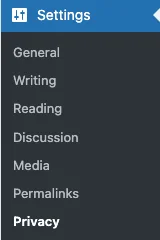
- Go to Settings > Privacy in your WordPress dashboard.
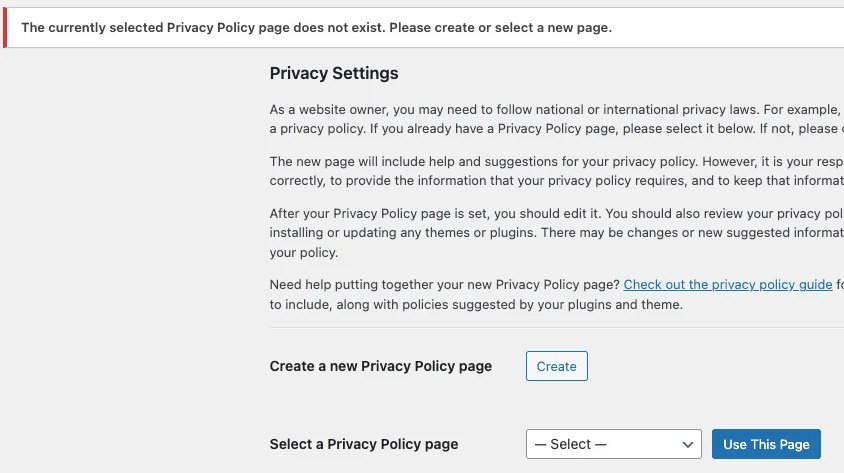
- You’ll see an option to create a new privacy page using WordPress’s starter template.
- Customize this template to reflect your actual practices. (Every site is different, especially if you use contact forms, plugins, or e-commerce.)
- If you already have a written privacy policy, create a new page and paste it in.
Step 2: Publish the Privacy Page
Once your content is ready, click Publish to make the page live.
How to Tell WordPress Which Page Is Your Privacy Page
After creating the page, you’ll want to make sure WordPress recognizes it as the official privacy policy:
- In your dashboard, go to Settings > Privacy.
- Under Privacy Policy Page, select your new page from the dropdown.
- Click Use This Page.
Now, WordPress will automatically link to this page in certain areas, such as user registration screens or other system-generated pages.
Best Practices for Your Privacy Page
- Keep It Updated – Update the page whenever you add new tools, plugins, or services that collect data.
- Make It Accessible – Link to it in your footer or navigation so users can easily find it.
- Be Transparent – Use plain language instead of legal jargon whenever possible.
- Include Contact Info – Let users know how they can reach you with privacy questions or requests.
Final Thoughts
A Privacy Page is more than just a formality; it’s a legal safeguard, a trust builder, and a professional necessity for any WordPress site. Luckily, WordPress makes it easy to create, assign, and manage a privacy policy page right from your dashboard.
By setting it up correctly and keeping it updated, you’ll protect both your visitors and your business.
That is today’s Ducky Journal Entry. We hope it’s helpful.
Comments are closed.